Two-factor authentication
You can now add an extra layer of security to your account with two-factor authentication (2FA) through an authenticator app. On top of your password, signing in now requires a temporary code generated on your phone, which keeps your account protected even if your password is compromised.

How to turn it on
In Settings -> Profile, the new Two-factor authentication section has an Enable button that opens a step-by-step wizard. Scan the QR code with an authenticator app (Google Authenticator, Authy, 1Password, or similar), or enter the key manually, then confirm with the first code to finish.
Recovery codes
When you enable 2FA, you get 16 single-use recovery codes, shown only once. Keep them somewhere safe. They let you sign in if you lose access to your authenticator app. Each code can only be used once.
One-step sign-in
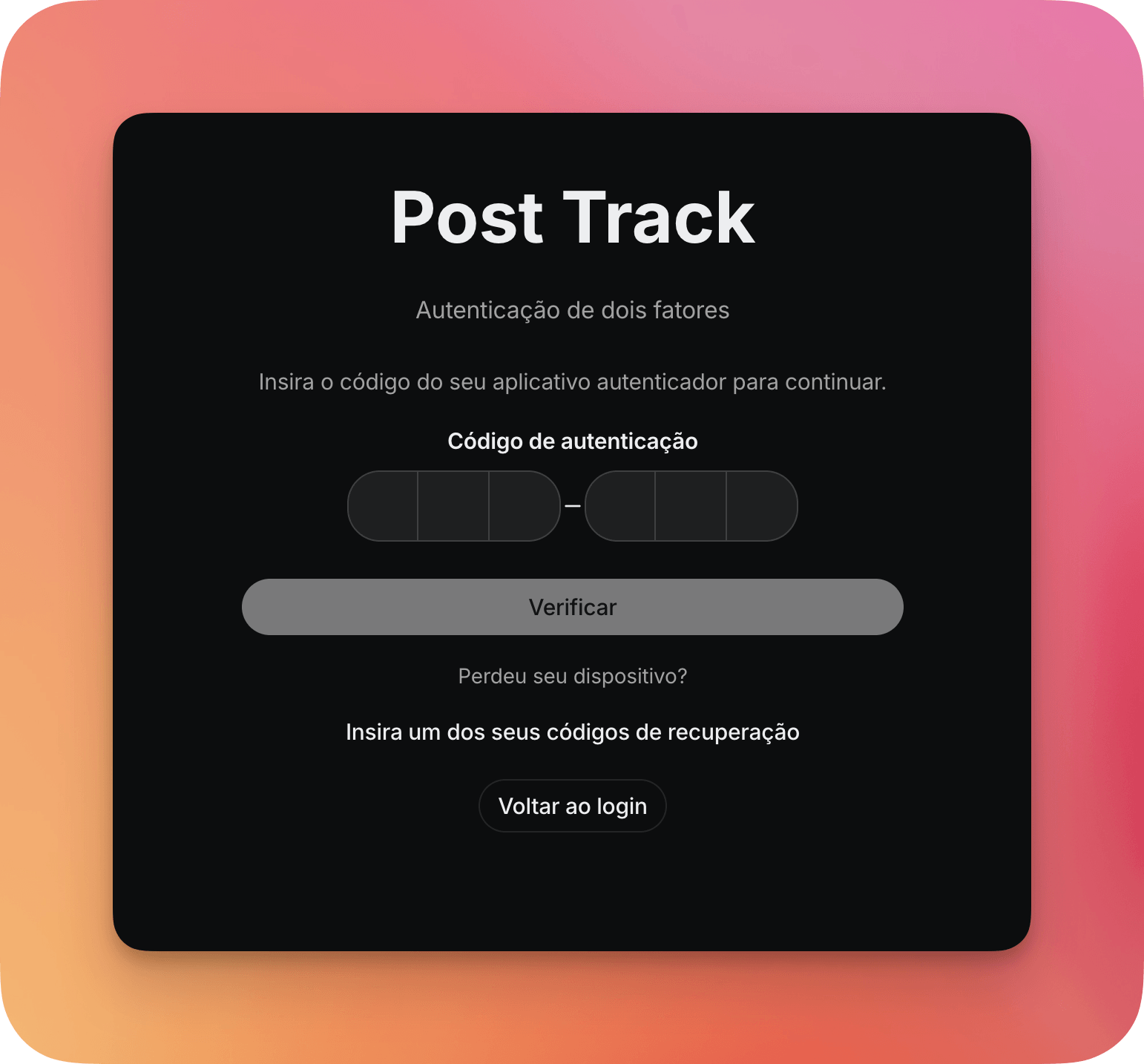
With 2FA on, when you sign in with your email and password, the sign-in screen asks for your authentication code, with no redirects or separate screens. If you don't have your phone at hand, just use one of your recovery codes.
Always in your control
Turning it on is optional, and you can undo it at any time. To turn it off, we confirm your identity again by asking for your password and a valid code (from the app or a recovery code). You can also sign out of your other active sessions right after setting up 2FA, so only trusted devices stay signed in.